💡 Key Takeaways
- Pixels are the bridge between ClikBy and advertising platforms for audience collection.
- AI Selena filters traffic and sends only quality users.
- Result — ready audiences for effective retargeting.
The Heart of Your Retargeting Machine
The "Pixels" section is the engine of your marketing system. This is where you create a bridge between your links and advertising platforms (Facebook, Google, TikTok, etc.), allowing our AI Selena technology to work its magic.
What is a Pixel in ClikBy?
Simply put, it's your identifier from the advertising system that you add to ClikBy. After that, ClikBy can send information about the highest quality users who clicked on your links directly to your advertising audience. This is the audience you configure using AI Selena.
What's Shown on Screen?
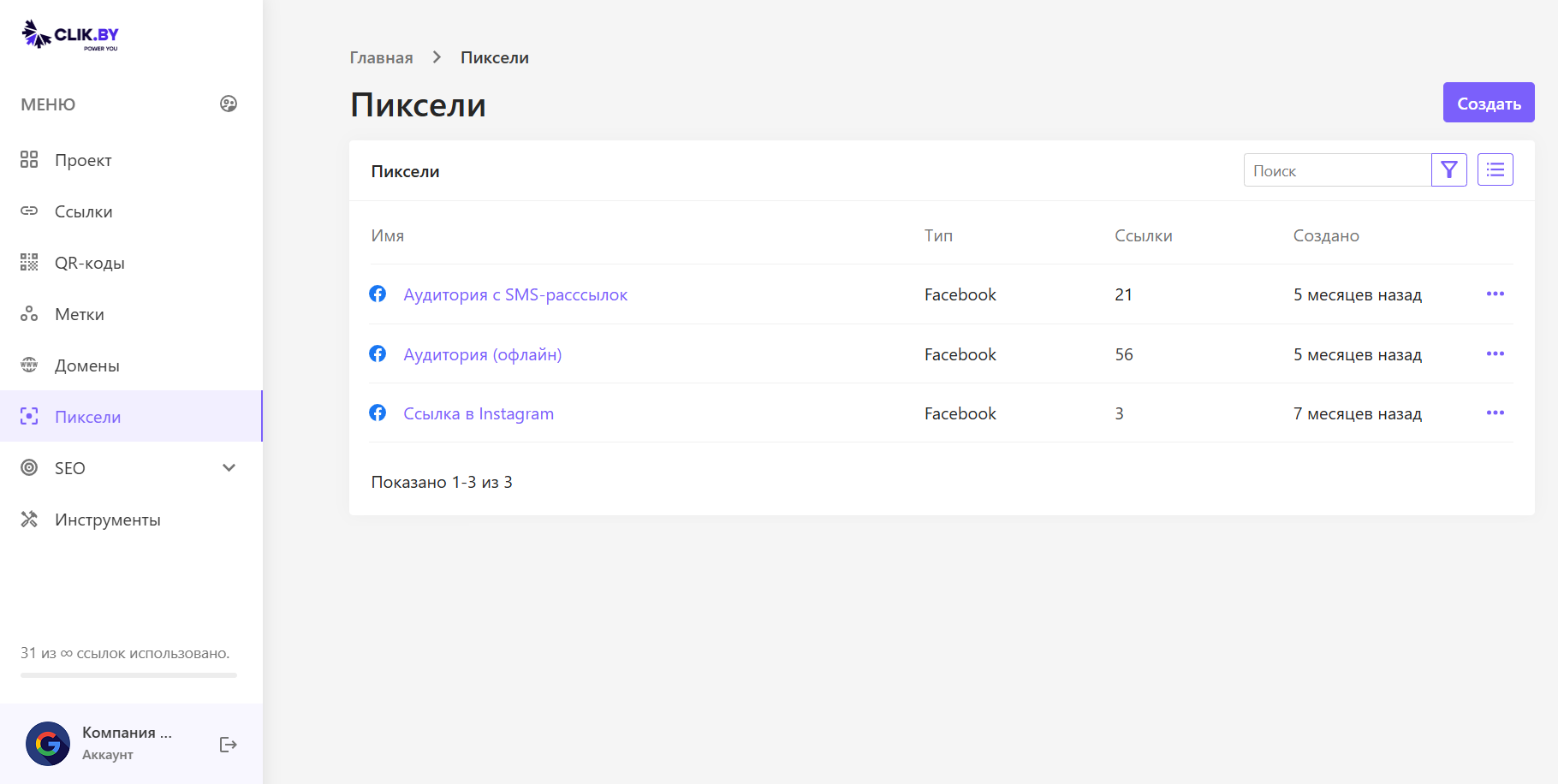
This is a list of all pixels from your advertising platforms that you've connected to ClikBy.
Interface Elements:
- "Create" Button: Your entry point. Click here to add a new pixel. Usually you just need to select the type (e.g., Facebook) and paste your pixel ID, which you copy from your advertising platform.
- Name: Here you give the pixel a clear name that reflects which audience you want to collect with it. Examples:
- Audience from SMS campaigns: All quality users who followed links from your SMS will be collected here.
- Audience (offline): Perhaps this pixel is tied to links on QR codes placed at offline locations.
- Link in Instagram: Audience who clicked the link in your Instagram profile ends up here.
- Type: Shows which advertising system the pixel belongs to (Facebook, Google, TikTok, etc.).
- Links: Shows how many ClikBy smart links use this pixel. For example, the "Audience (offline)" pixel is already working on 56 of your links.
- Three dots (...): Menu for editing or deleting the pixel.
How Pixels Work
Working Principle:
- Connection: You add a pixel from your advertising platform to ClikBy
- Binding: Assign the pixel to smart links
- Data Collection: Users click on links
- Filtering: AI Selena selects quality users
- Transfer: Data is sent to the advertising system
- Retargeting: You launch ads on the collected audience
Practical Example
Imagine you want to launch retargeting for everyone who responded to your SMS campaign.
Complete Pixel Workflow:
- Copy the pixel ID from your Facebook advertising platform.
- Add the pixel to ClikBy. Click "Create", select type "Facebook", paste the ID and give it a clear name: "Audience from SMS campaigns".
- Create a smart link for your SMS campaign. In the advanced settings of this link (remember the gear icon ⚙️?) you check the box next to your new pixel "Audience from SMS campaigns".
- Send the SMS. Users start following the link.
- AI Selena starts working. Our technology analyzes each user who clicked through. It filters out bots, random clicks and keeps only those who showed real interest.
- The audience fills up. AI Selena sends identifiers of these quality users to your Facebook advertising platform, where they automatically end up in the audience associated with your pixel.
- Launch ads and save money. You go into Facebook Ads, select this ready, "cleaned" and already warmed-up audience and launch a retargeting campaign on it. Result — maximum conversion at minimum cost.
Supported Advertising Platforms
📘 Facebook & Instagram
Meta Pixel for collecting audiences in Facebook Ads Manager
🔍 Google Ads
Google Analytics and Google Ads for remarketing
🟡 Yandex.Audiences
Yandex.Audiences for creating retargeting audiences
🎵 TikTok Ads
TikTok Pixel for social media advertising
💼 LinkedIn Ads
LinkedIn Insight Tag for B2B retargeting
🔵 VK Ads
VKontakte pixel for social media advertising
Best Practices for Working with Pixels
Pixel Naming
- Use clear names: "Email Subscribers", "Blog Visitors", "Buyers"
- Specify source: "Instagram Stories", "SMS Campaign", "Offline QR"
- Add dates: "March 2024 Promotion", "Summer Campaign"
Audience Segmentation
- Create separate pixels for different channels and campaigns
- Group by behavior: "Cold Audience", "Warm Audience", "Buyers"
- Consider sales funnel: different pixels for different stages
Optimization
- Regularly clean audiences of inactive users
- Test different AI Selena settings for each pixel
- Analyze effectiveness of each audience separately
Conclusion
Summary: The "Pixels" section is your audience management center. Here you decide which user segments and from which channels you want to collect for further, cheaper and more effective advertising.
Congratulations! You've mastered the entire main workflow in ClikBy: from creating links and QR codes to organizing them and finally collecting audiences for retargeting. Now you're ready to use the platform at 100% of its power.