
💡 Key Takeaways
- Automatic creation: QR code is generated automatically when creating a smart link.
- Full customization: Change colors, logos and QR code design.
- Statistics tracking: Full scan analytics like for regular links.
QR codes in ClikBy are a powerful tool for offline marketing that allows you to track the effectiveness of print advertising, flyers, business cards and other materials. Each QR code is linked to a smart link and provides full scan analytics.
QR Code Basics
QR codes in ClikBy are created automatically when creating each smart link. This means you always have a ready QR code for any link that can be used in print materials.
ClikBy QR Code Benefits:
- Full analytics: Track scans by country, device, time
- Customization: Change colors and add logo
- High quality: Vector formats for printing any size
- Dynamic: Ability to change target link without reprinting QR code
Creating and Finding QR Code
So, you've created a Smart Link, the system has prepared a QR code for you - what's next?
Step 1: Navigate to QR Codes Section
Go to the "QR Codes" section - the top QR code is the one created for your new smart link.
Step 2: Open Editor
Click the three dots on the right, in the popup window click "Edit". Then the editing window for this QR code opens.
Editing QR Code
In the editing window you can change various QR code parameters:
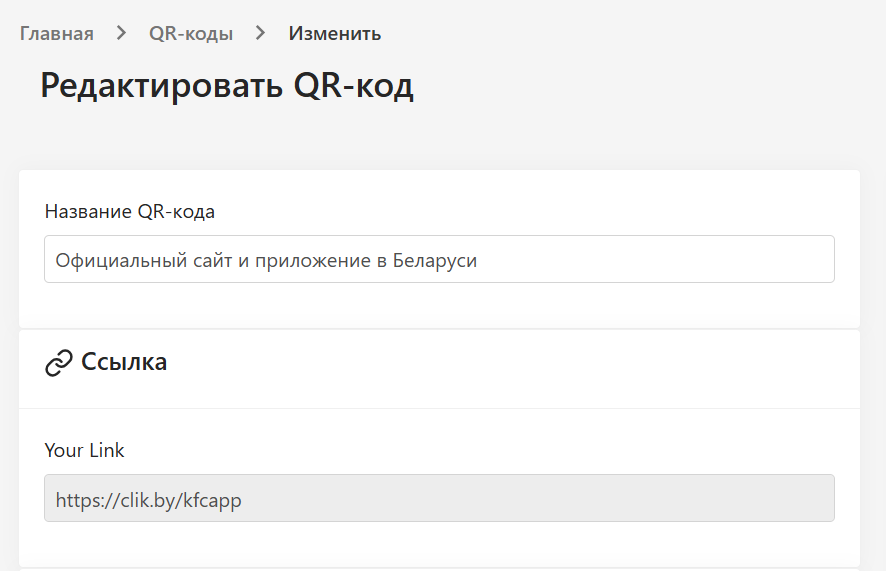
Basic Settings:
- QR Code Name: Can be changed for easy identification
- Link: Field is inactive - this is correct since the QR code is linked to a smart link
- Description: Add a comment for internal use
QR Code Design Customization
Color Settings
- Foreground color: Main QR code color (usually black)
- Background color: QR code background color (usually white)
- Gradients: Ability to create gradient transitions
Adding Logo
You can add your company logo to the center of the QR code. The system will automatically select the optimal size to maintain code readability.
Shape Settings
- Dot shape: Square, round or rounded corners
- Corner shape: Different styles for corner elements
- Size: Automatic optimization for selected format
Download and Formats
Available Formats:
- PNG: Raster format for web use
- SVG: Vector format for scaling without quality loss
- PDF: Print-ready format
Size Recommendations:
- Business cards: 15x15 mm minimum
- Flyers: 25x25 mm optimal
- Posters: 50x50 mm and larger
- Billboards: Use vector formats
Best Practices for Using QR Codes
Design and Placement
- Contrast: Ensure sufficient contrast between code and background
- Size: QR code should be at least 2x2 cm for reliable scanning
- Free space: Leave white margins around the code
- Print quality: Use high resolution for printing
Call to Action
- Add text "Scan QR code"
- Indicate what user will get after scanning
- Place code in a convenient location for scanning
Testing
- Always test QR code before printing
- Check on different devices and apps
- Make sure code reads in different lighting
QR Code Analytics
Each QR code in ClikBy provides detailed statistics:
- Number of scans by day, week, month
- Scan geography - countries and cities
- Devices - phone types and operating systems
- Activity time - when code is scanned most often
- Sources - which apps were used for scanning
This information will help you optimize offline campaigns and understand your audience behavior.