




Key takeaways
- 5 minutes — creating and setting up Facebook Pixel.
- One pixel per ad account — use the existing one.
- Integration with ClikBy for tracking visits.
- Automation — events without manual code on every link.
Facebook Pixel: the key to effective advertising
Facebook Pixel is a code snippet for tracking actions on the site after a click on an ad in Facebook and Instagram. The basis of retargeting, conversion optimization, and Lookalike audiences.
With ClikBy you connect the pixel to smart links and get analytics on visits and conversions.
What the pixel can do
- Tracks conversions (purchases, sign-ups, leads)
- Creates audiences for retargeting
- Optimizes ad impressions
- Builds similar audiences (Lookalike)
- Measures campaign ROI
How to find an existing Facebook Pixel
Important: an ad account usually has one pixel. If ads have already run — do not create a new one.
Open Business Manager
Go to business.facebook.com.
Find Events Manager
In the menu — «Events» / Events Manager or via «All tools».
Check the pixel list
If the list is empty — create a new pixel.
Creating a new Facebook pixel
If you do not have a pixel yet, follow the steps below.
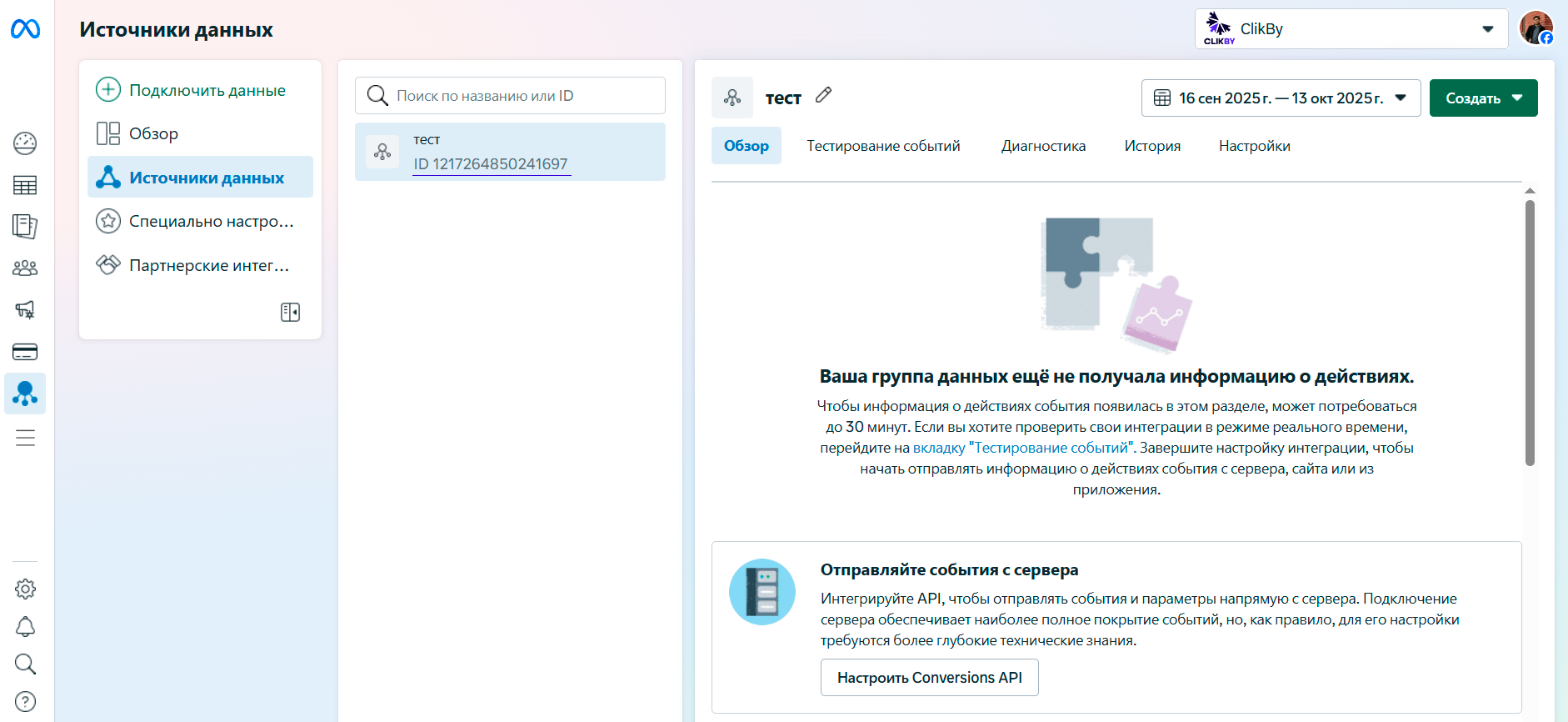
Open Events Manager
In Business Manager, open the «Events» section.
Create a pixel
«Connect data» → «Web» → «Connect».
Configure and get the ID
Enter a name, create the pixel, and copy the ID (15–16 digits) for ClikBy.
Adding a site
In data sources, select the pixel → collect browser events → install the code manually. Copy the code and enable advanced matching. You do not need to add on-site events for AI Selena — go to the pixel overview.
Example ID: 123456789012345 — this ID is added in ClikBy settings to track clicks on smart links.
Usage scenarios
- Retargeting: ads to people who have already been on the site.
- Conversions: measuring sales, sign-ups, and leads.
- Lookalike: finding people similar to your best customers.
- Analytics: on-site behavior and ad performance.
ClikBy integration
ClikBy automatically sends events to the pixel on smart-link clicks.
Auto-setup: add the pixel ID in ClikBy — the system will track visits as ViewContent with extra parameters.
Совет: separate pixels are needed only with different Business Managers. In one account — one pixel and different events.