
Key takeaways
- Auto-creation: The QR appears together with the smart link.
- Customization: colors, logo, shape.
- Stats: full scan analytics.
Important: for a QR with a smart link, first create the smart link — the system will generate the QR itself.
QR in ClikBy is an offline-marketing tool: print, flyers, business cards with full scan analytics.
QR code basics
A QR is created automatically for every smart link — there is always a ready code for print.
Benefits
- Analytics: countries, devices, time
- Дизайн: colors and logo
- Quality: vector for any print
- Dynamics: change the URL without reprinting
Creating and finding a QR code
You created a smart link — what next?
1
«QR codes» section
The top (new) QR — for the link just created.
2
Editor
Three dots → «Edit» — the editing window.
Editing a QR code
In the editing window the code parameters are available:
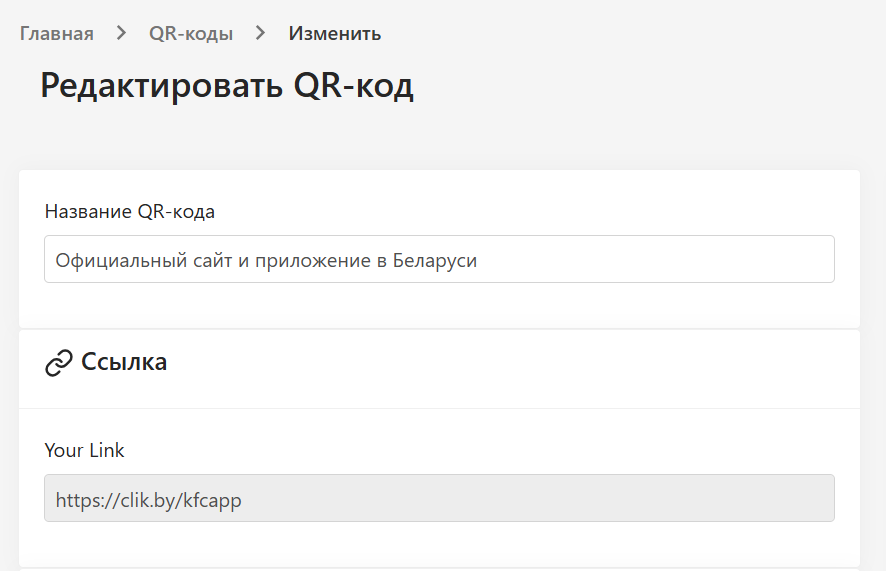
- Name: for convenient identification
- Ссылка: the field is inactive — the QR is bound to the smart link
- Description: an internal comment
Design customization
Цвета
- Foreground color (usually black)
- Background color (usually white)
- Gradients
Логотип
A logo in the center — size is chosen automatically so the code stays readable.
Форма
- Dot shape
- Corner shape
- Auto-size for the format
Download and formats
- PNG: for the web
- SVG: vector without quality loss
- PDF: ready to print
Размеры
- Business cards: from 15×15 mm
- Flyers: ~25×25 mm
- Posters: from 50×50 mm
- Billboards: vector only
Best practices
Design and placement
- Enough contrast
- At least 2×2 cm
- White margins around
- High print resolution
CTA and tests
- The text «Scan the QR code»
- What the user will get
- A test on different devices and lighting
QR code analytics
For each QR the following are available:
- Scans by day / week / month
- Geography
- Devices and OS
- Activity time
- Scanning apps
These data help optimize offline campaigns.